






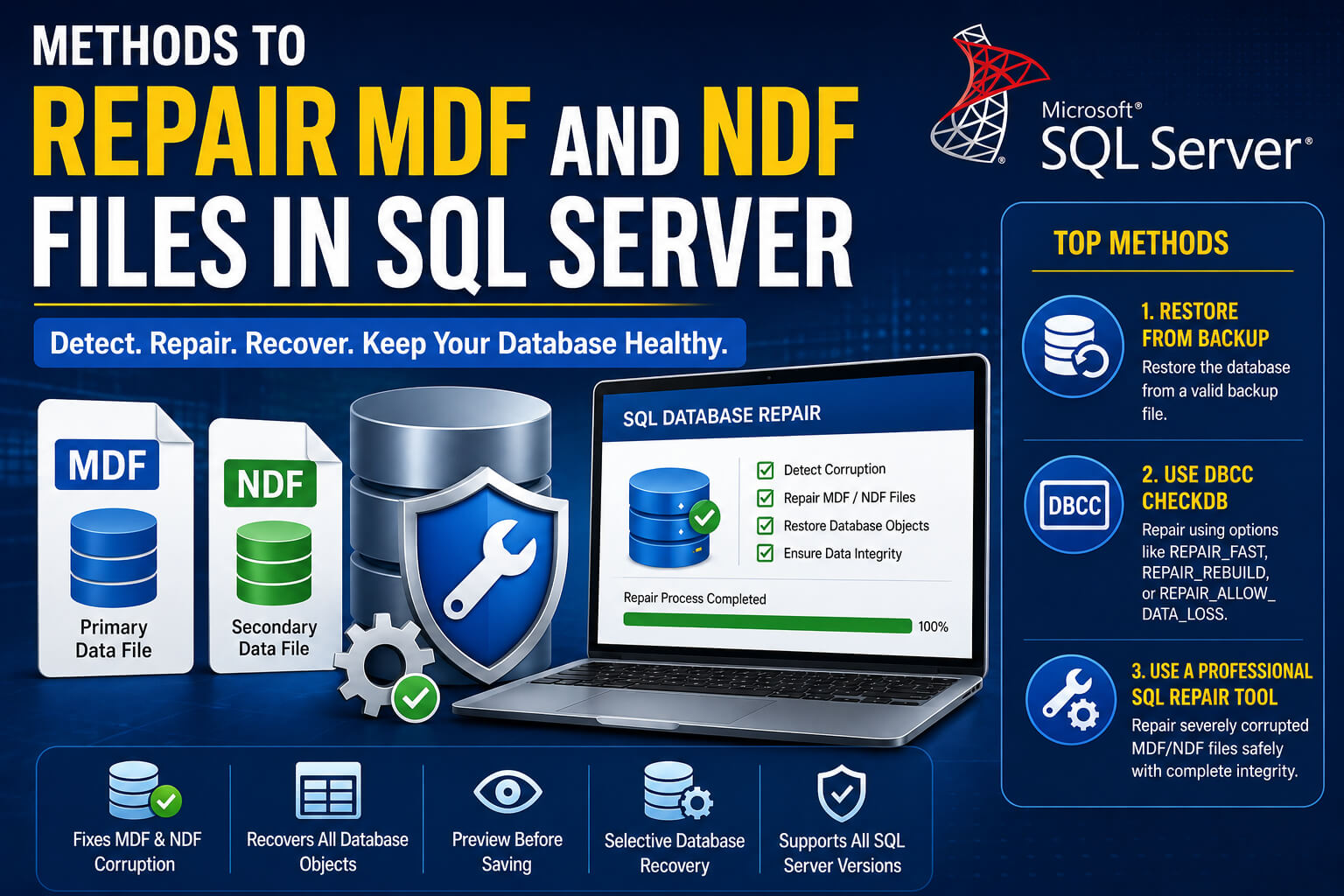

In SQL server, the data is stored in data files such as NDF and MDF files. MDF extension file is the Main Database file that contains all information in the database. It is associated with the LDF file storing all the transactions and changes made to database. The MDF file is known as the primary data file and NDF file is known as secondary data file. All these files have their own importance. If these files get corrupted due to any reasons, you may fail to access the database, or encounter errors like 5172, 5171 etc. In this article, we will discuss the major causes behind the corruption in MDF and NDF files and the methods to repair them. If you want to quickly repair them with complete integrity, then you can take the help of any professional SQL repair tool.
MDF and NDF file corruption-Major reasons
The corruption in MDF and NDF file can occur due to various software and hardware factors. Some of the probable reasons behind it are:
- Bad sectors on your system disk
- Sudden power failures
- Improper shutdown of your system or SQL server
- Your system suddenly crashes
- Bug on the SQL server instance.
- Virus or malware attacks on the system hosting server
- You might have forcefully closed MDF/NDF file while transactions are running.
- Inconsistencies in log files
Methods to check for corruption in MDF/NDF files
You can use SQL error log to confirm the corruption in MDF or NDF files. This log will display the errors related to attaching a file or MDF file access failure. To check this, go to Management, click SQL Server error logs>View> SQL Server log.
If you’re able to attach the MDF/NDF file, then you can use the DBCC command. You can use it to check mdf/ndf file for corruption. Here’s how to use this command to check the corruption in SQL data files.
DBCC CHECKDB (‘JohnCompanyDB’)
Top Methods to repair SQL server MDF/NDF files
Once the corruption in MDF/NDF files is confirmed, then follow the methods below to repair them:
1-Restore the backup
Restoring the bak file is one of the most preferred solutions to restore the data files in case of corruption.
You can restore the backup type as per your requirements. If you have a large database and have created a filegroup backup, then you can perform piecemeal recovery. And if you have a full backup then you can restore the MDF and NDF file with complete consistency. You can easily restore the database from the full backup after checking its integrity, by following the command:



USE [master]
RESTORE DATABASE [JohnCompanyDB] FROM DISK = N’D:\Internal\ JohnCompanyDB.BAK’
WITH FILE = 1, MOVE N’bank121′ TO N’C:\Program Files\Microsoft SQL Server\MSSQL15.MSSQLSERVER\MSSQL\DATA\ JohnCompanyDB.mdf’,
MOVE N’JohnCompanyDB _log’ TO N’C:\Program Files\Microsoft SQL Server\MSSQL15.MSSQLSERVER\MSSQL\DATA\ JohnCompanyDB _log.ldf’,
NOUNLOAD, STATS = 5
GO
2- Use DBCC CHECKDB command
If your backup status is not ok, or it is not available, then you can use the native command of the SQL server, i.e., DBCC CHECKDB, to repair MDF and user-defined NDF files. It has multiple repair options like
REPAIR FAST- It works fast to rebuild MDF/NDF files, but it may not repair them.
REPAIR REBUILD– It rebuilds all data in the database, including indexes, without data loss. But it may not resolve complex corruption issues in the MSSQL data files.
REPAIR_ALLOW_DATA_LOSS– It can repair corruption in the database of any state. But while repairing pages or rows, it may reallocate them, causing the data loss.
Here are the steps to use these repair options of DBCC CHECKDB command to repair MDF/NDF files:
ALTER DATABASE JohnCompanyDB SET SINGLE_USER WITH ROLLBACK IMMEDIATE;
GO
DBCC CHECKDB (‘JohnCompanyDB’, REPAIR_FAST);
GO
DBCC CHECKDB (‘JohnCompanyDB’, REPAIR_REBUILD);
GO
DBCC CHECKDB (‘JohnCompanyDB’, REPAIR_ALLOW_DATA_LOSS);
GO
ALTER DATABASE JohnCompanyDB SET MULTI_USER;
GO
Once repaired the MDF/NDF file then check its integrity by using the DBCC CHECKDB command.
DBCC CHECKDB can help you resolve inconsistency issues in database but it has some downsides:
- It may not guarantee the complete data recovery. It may delete some data, especially pages or rows.
- Running the command on large databases can slow down the performance of the server.
- It may not work if the database is in multi-user mode. It requires the database to be in a single-user mode.
Use a professional MS SQL repair tool- to repair MDF/NDF files
If your database file is large and highly corrupted, then you can use a professional SQL repair tool. Stellar Repair for MSSQL is the perfect solution to repair MDF/NDF files. It has many distinguished features such as a user-friendly design, easy operability, and fast processing. The software is also recommended by many Microsoft MVPs and IT professionals. Here are some impressive features that make it a perfect tool to repair SQL databases:
- Quickly fixes complex corruption issues in primary (MDF) and secondary (NDF) database files.
- Restores tables, triggers, indexes, stored procedures, views, and rules with complete integrity.
- Allows you to preview the repairable objects before saving.
- Allows you to perform a specific database recovery
- Supports all SQL server versions including MS SQL Server 2022, MS SQL Server 2019
Conclusion
When SQL data files like MDF and NDF, become corrupted, you can restore the backup file or perform SQL database repair either by using built-in DBCC CHECKDB rebuild or REPAIR_ALLOW_DATALOSS. However, these repair methods may not help you to repair severely corrupted MDF/FILES with complete integrity. To repair them quickly and with no data loss, you can use a reliable SQL repair tool. It can help you repair or recover all data from the MDF/NDF file, including pages and indexes.